Add a puppy buyer as a customer
3 minute readFree planUpdated September 2026
Create a customer record for a puppy buyer, inquiry, or past home with only a name. Keep their contact details, waitlist place, invoices, and contracts on that record.
In this stage
Placing puppies
- Add a puppy buyer as a customer
- Create and send a puppy buyer application
- Manage your puppy waiting list and match buyers
- Take a puppy deposit before the litter is born
- Send a puppy invoice and record a deposit
- ProSend puppy contracts for signature or upload signed copies
- Set up a puppy buyer portal
- See what buyers can view in their portal
- How buyers pay invoices and sign contracts
- Track puppy sales and go-home dates
- Add notes and files to breeding records
On this page
Why it matters
- One record per family holds their waitlist place, invoices, contracts, portal, notes, and files.
- A name is enough to start. Add a phone or an email as soon as you have one.
- Applications create customer records. Litter inquiries keep buyer details ready for you to add.
Add a customer yourself
- Open Customers and select Quick add.
- Enter their name, and the Phone and Email if you have them.
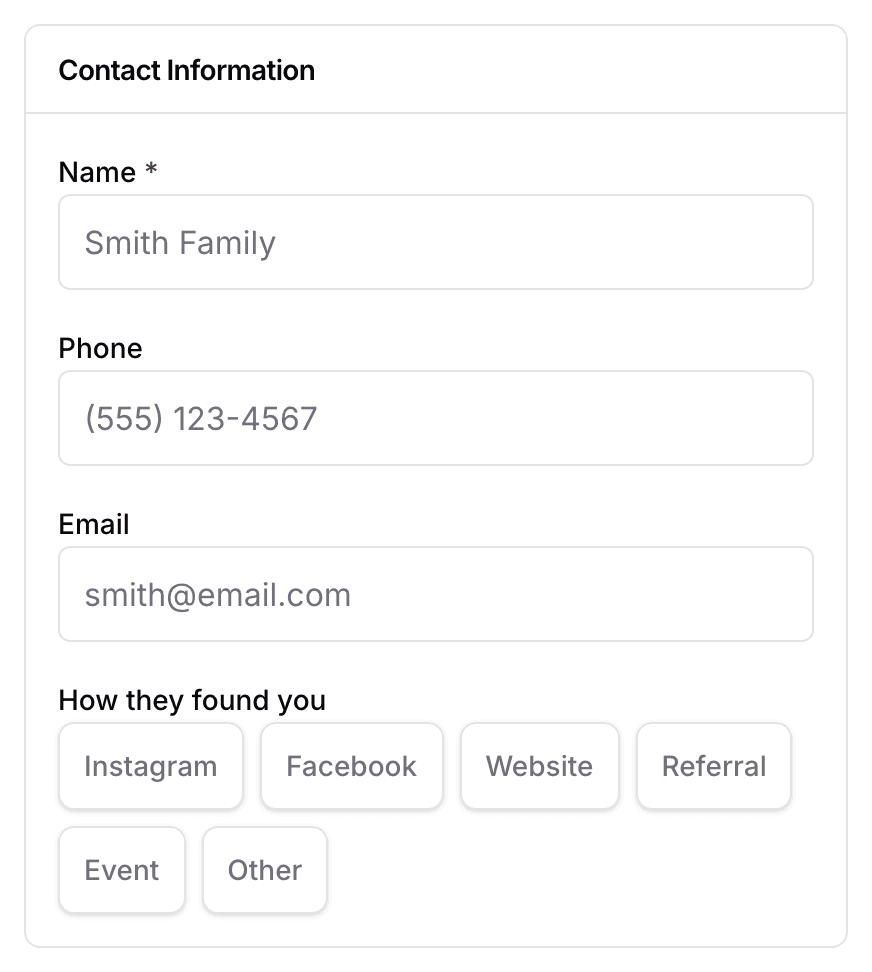
- Choose How they found you if you know.
- Turn on Add to Waitlist if they are waiting for a puppy, then choose the Breed Interest.
- Select Save customer.
If the email or phone matches someone already on your list, BreedTracker says so and offers Open their record.
Add customers through applications and inquiries
Send application emails the family a private link to your application form. The customer is created the moment they submit it, with the status Prospect. Families who write in from your public litter page arrive under Interested families on that litter. There, Add as customer or Add to waitlist does the rest.
Find actions and records on the customer page
Everything you do for this family starts from Actions at the top of their page. From there you send an application, record a payment, or create an invoice. The same menu adds them to a waitlist, matches a puppy, and adds a contract.
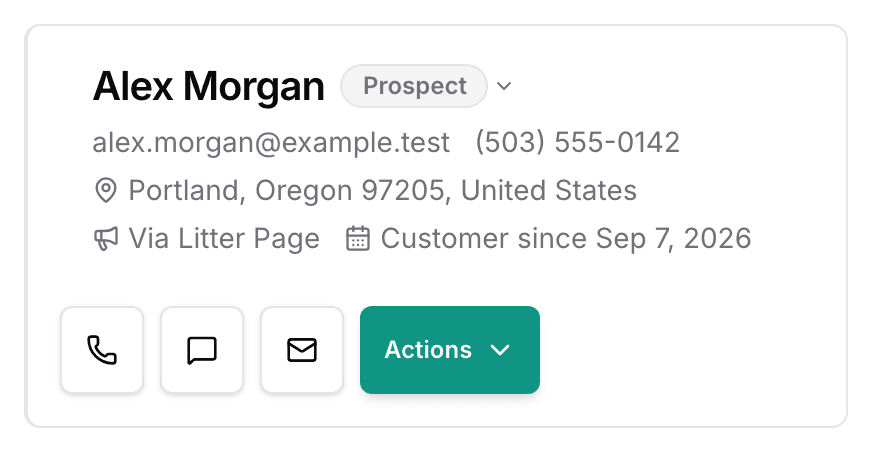
The tabs below show Overview, Payments, and Buyer Portal. Overview holds the Puppies card, with a row for each puppy they are waiting for or buying. Notes and Files sit under the tabs, so the paperwork stays with the family it belongs to.
Understand customer statuses
Each family carries two badges. Their status shows where they are with you. The money badge beside it shows where their payments stand.
| Status | What it means |
|---|---|
| Prospect | What it meansA family you are talking to. Every new customer starts here. |
| Waiting | What it meansThey are on a waitlist, or they paid a deposit and no puppy is chosen yet. |
| Matched | What it meansA puppy is held for them, reserved or sold, and has not gone home yet. |
| Past buyer | What it meansTheir puppy went home, and nothing else is waiting or matched. |
| Archived | What it meansOff your lists, and off every waitlist. |
BreedTracker sets each status from what you do. Adding them to a waitlist, taking a deposit, matching a puppy, and marking a puppy went home all move it. Payments after that never change it.
Archived is the one status you set yourself. Archive customer hides them and takes them off your waitlists. To bring them back, select Unarchive. Their status returns to whatever their records show.
Read the money badges
| Badge | What it means |
|---|---|
| Deposit paid | What it meansThey paid a deposit, and no price is set yet. |
| Left to pay | What it meansThey owe money you have not asked for yet. The badge shows the amount. |
| Payment due | What it meansAn invoice or payment request is unpaid. The badge shows what you billed. |
| Paid in full | What it meansEverything is paid, and their puppy has not gone home yet. |
Money badges update on their own as you bill and as payments come in. You never set them by hand. The Puppies card on the family's Overview tab shows the same money for each puppy. See Take a puppy deposit before the litter is born.
Next
Did this answer your question? If not, we would like to know what you were looking for.
Email support