Share a public litter page with buyers
3 minute readFree planUpdated September 2026
Publish a litter page to share puppy availability and updates with interested families. Choose whether it shows weights and prices, then review inquiries on the litter.
In this stage
Expecting a litter
- Create a litter from a recorded heat
- Identify your puppies
- Record whelping and puppy birth details
- Log temperatures before whelping
- Record puppy weights and read the growth chart
- Understand puppy weight alerts
- Track litter care with the checklist
- Share a public litter page with buyers
- Understand the free plan litter limit
On this page
Why it matters
- One shared link shows puppy availability and stays current as you update your records.
- Families send inquiries from the page and confirm their email before appearing on your litter.
- You choose what shows: availability, weights, and price.
Publish and share the litter page
- Open the litter and select the Litter Portal tab.
- In Public litter page, turn on the switch and select Publish.
- Select Copy link and share it however you like.
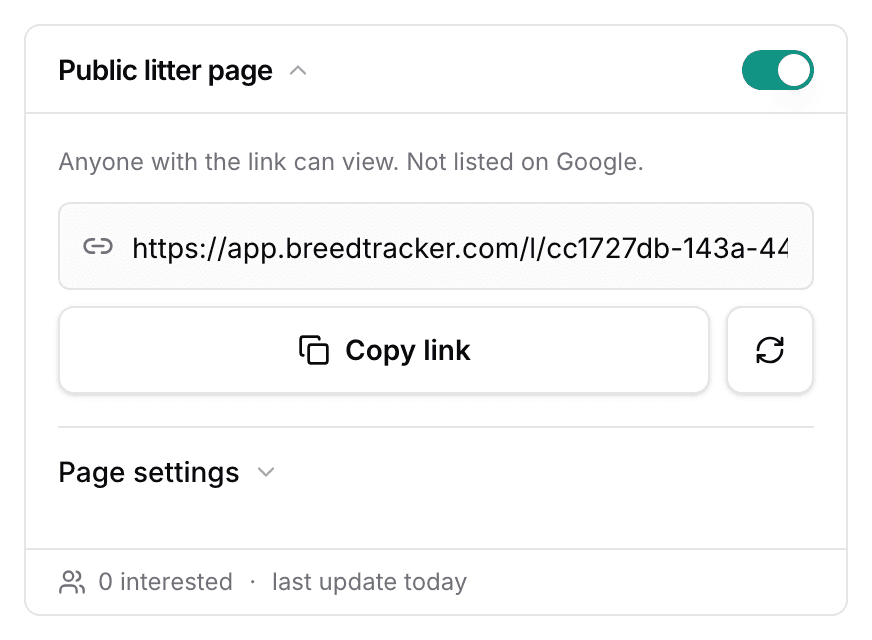
- Open Page settings to choose Puppy availability, Show weights, Show price, and a Note to prospects.
New link retires the old link at once, for when a link has traveled further than you wanted.
What buyers see on the litter page
The page opens with the litter's name, how many puppies are available, the go-home date, and the age. Once the puppies are born it adds the birth date, with the count of boys and girls.
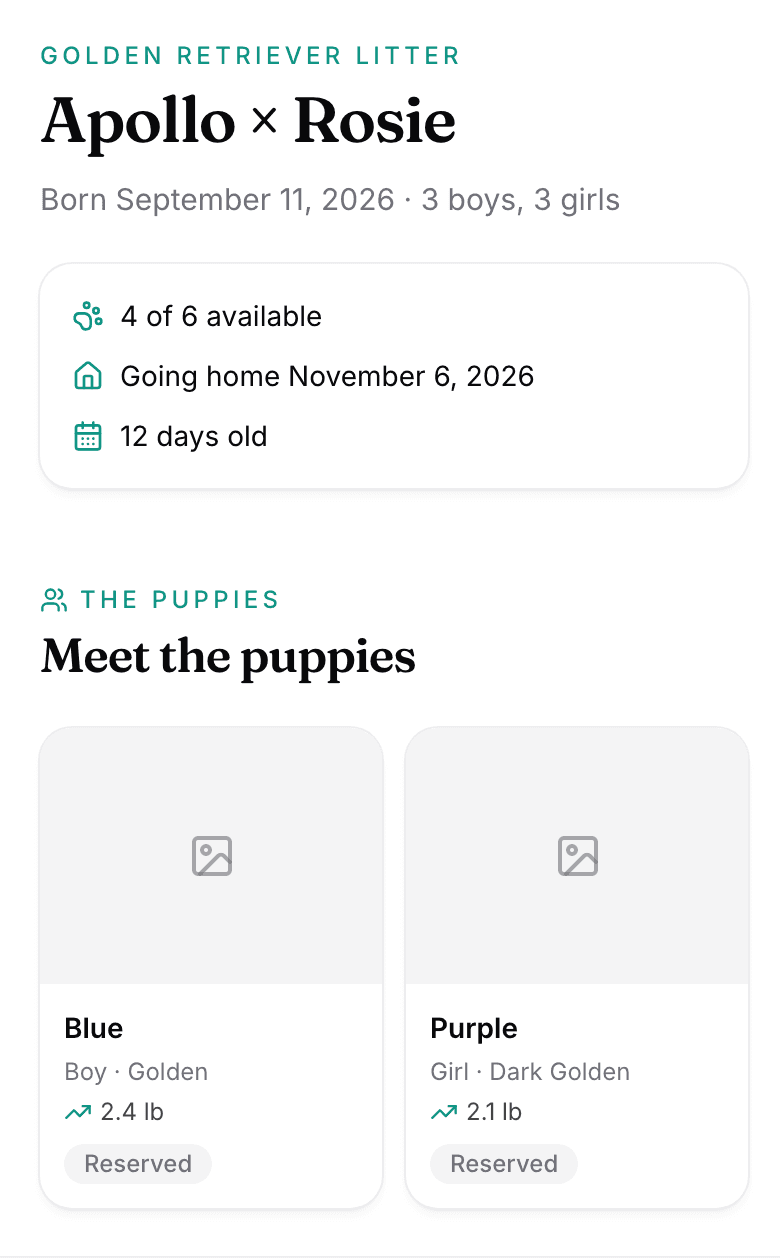
Under that comes a card for each puppy, badged Available, Reserved, or Went home. Each card carries the puppy's latest weight while Show weights is on. Below the puppies sit the Updates you post to the litter. The puppy interest form appears last. No sign-in is needed, and the page is not listed on Google.
Review inquiries from interested families
- The family fills in their name, their email, and a note, and picks a puppy or No preference.
- They confirm from the email BreedTracker sends them.
- They appear under Interested families on the Litter Portal tab, and the dashboard reads families waiting to hear back.
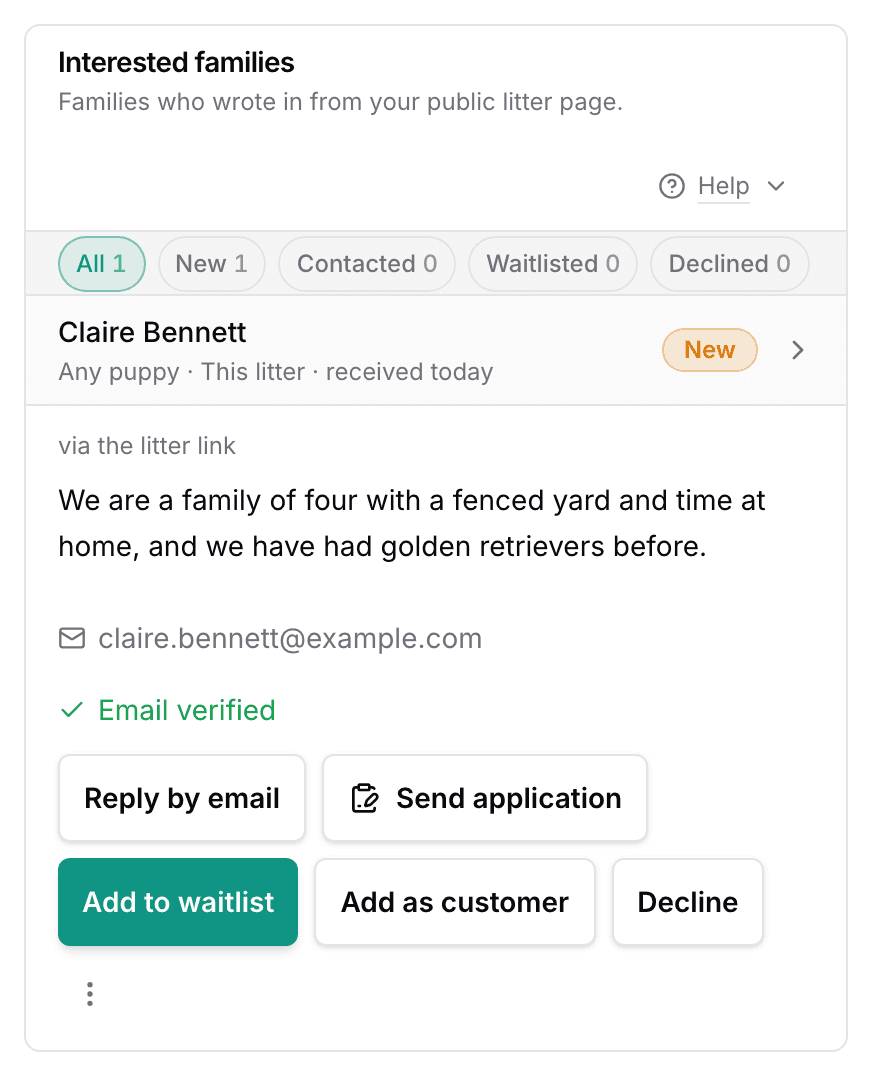
- Select Add to waitlist or Add as customer, or Decline.
A family you add becomes a customer record, and the waitlist choice adds them to your puppy waitlist.
Control litter page privacy
The page never shows your phone or your email, only your kennel name. A reserved puppy never shows who reserved it. Counts only or Hidden removes the per-puppy status, and the price stays hidden until you turn it on. Turning the switch off stops the link at once.
Next
Did this answer your question? If not, we would like to know what you were looking for.
Email support