Track litter care with the checklist
3 minute readFree planUpdated September 2026
Track litter care tasks on a checklist with dates counted from whelping. Mark items complete, add litter-specific tasks or update your default list.
In this stage
Expecting a litter
- Create a litter from a recorded heat
- Identify your puppies
- Record whelping and puppy birth details
- Log temperatures before whelping
- Record puppy weights and read the growth chart
- Understand puppy weight alerts
- Track litter care with the checklist
- Share a public litter page with buyers
- Understand the free plan litter limit
On this page
Why it matters
- Each litter has a care checklist, with dates counted from whelping and items to mark complete.
- Choose the checklist items and dates that new litters use.
- An item past its date shows on your dashboard until it is done.
Complete tasks on a litter checklist
- Open the litter and find Litter Checklist on its Overview.
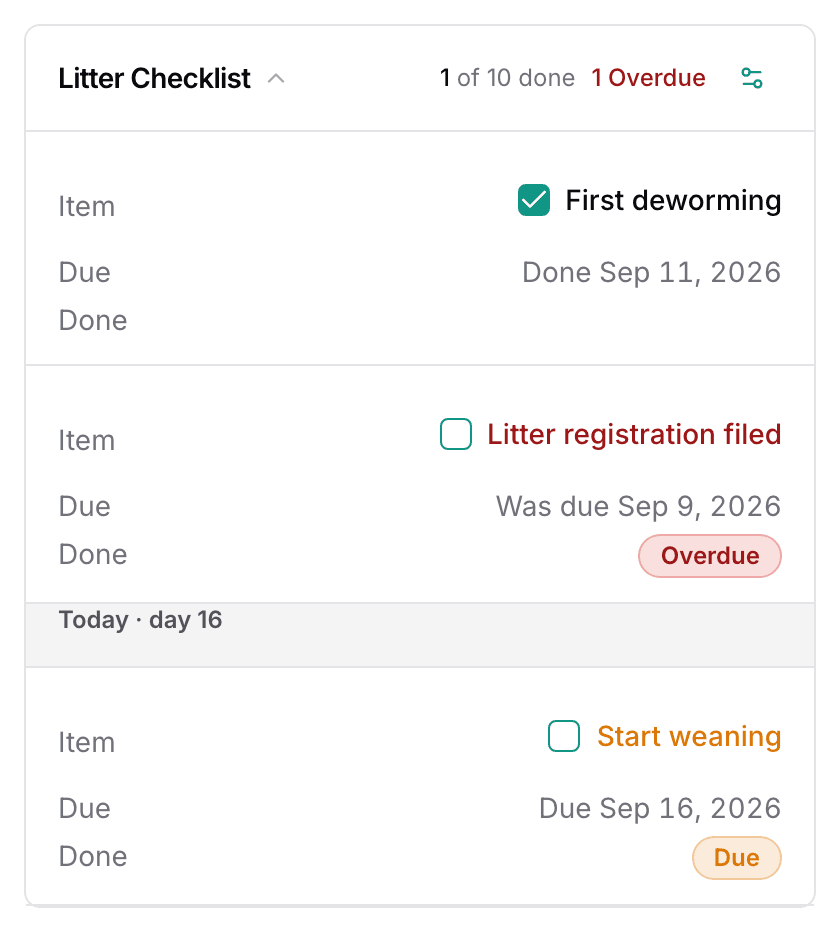
- Tick an item when it is done. The row then shows the date.
- The Today · day N line marks where this litter is now.
- Untick the box if you ticked it by mistake.
Dates count from the expected whelp date until you record the birth. After birth, checklist dates count from the recorded whelp date. See Record the whelping.
The card header counts what is done, and marks anything past its date as Overdue. Your dashboard also flags overdue checklist items. The row counts the late items and ends with Review checklist. See Read your breeding dashboard.
Add an item to one litter
- Select Add item to this litter under the list.
- Type the name of the item under Item.
- Enter Days, then choose Before or After whelping. Leave the days blank for an item with no date.
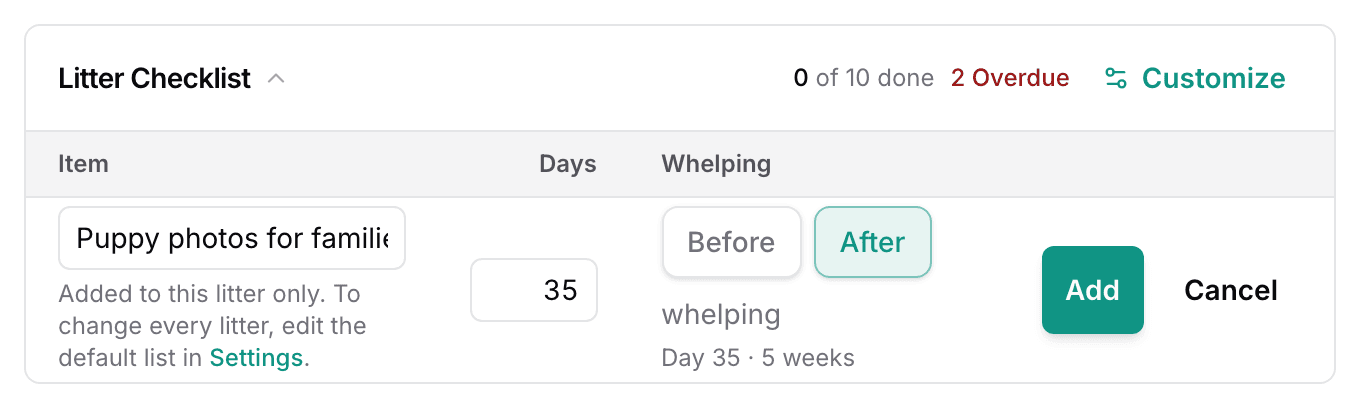
- Select Add.
An item added here belongs to this litter only. The X at the end of its row removes it.
Edit default litter checklist items
- Select Customize on the card, or open Settings and then Litter checklist.
- Change an Item or its Days.
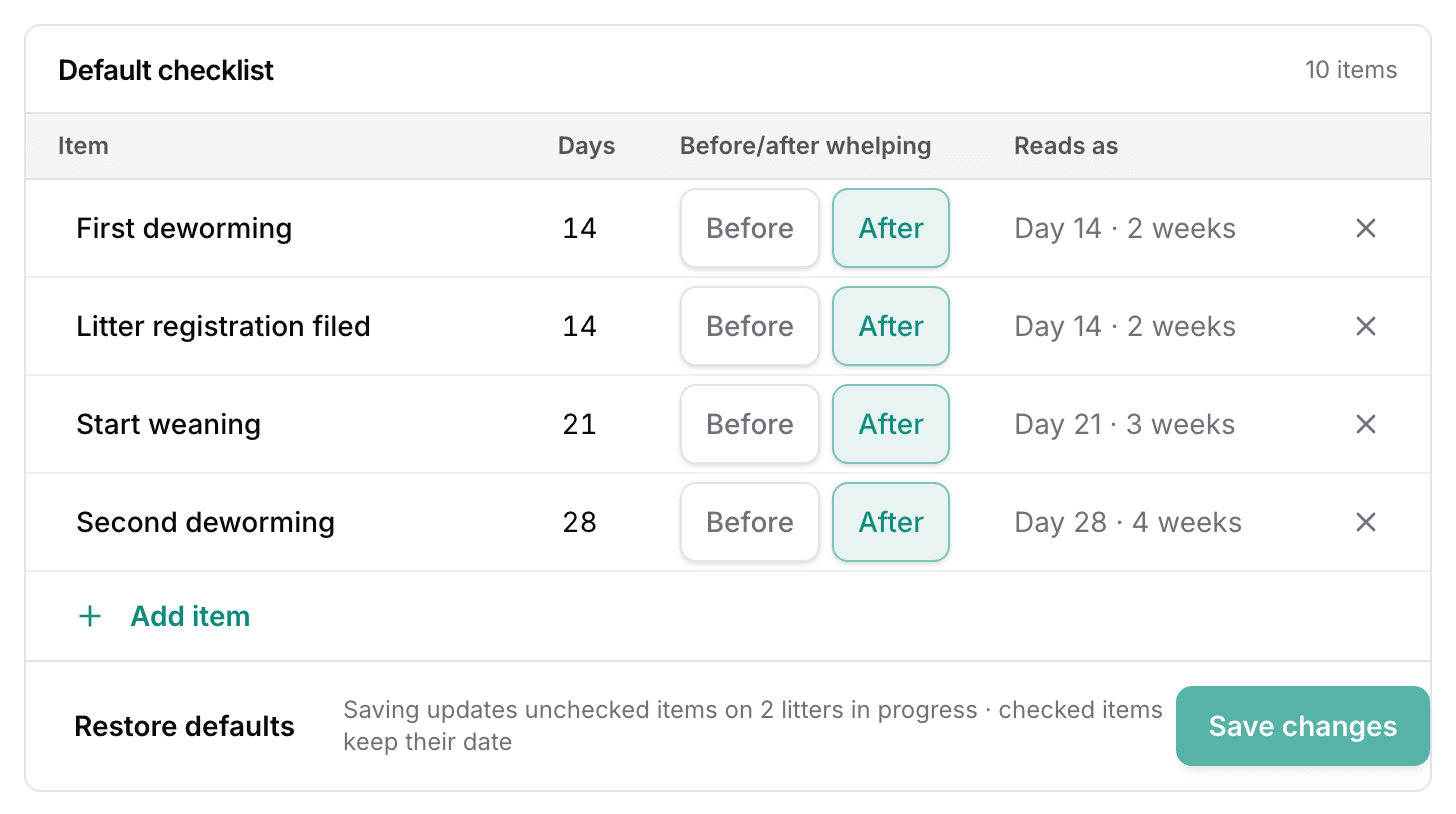
- Select Add item for a new one, or the X on a row to remove it.
- Select Save changes.
Saving updates the unchecked items on litters in progress. An item you have already ticked keeps its date.
Restore defaults brings the ten starting items back. Items you added yourself are taken out at the same time. The table lists the default tasks and their days after whelping.
| Item | Day |
|---|---|
| First deworming | Day14 |
| Litter registration filed | Day14 |
| Start weaning | Day21 |
| Second deworming | Day28 |
| Third deworming | Day42 |
| First vaccinations | Day42 |
| Vet exam | Day49 |
| Microchip | Day49 |
| Fourth deworming | Day56 |
| Go-home paperwork ready | Day56 |
Turn litter checklists off
The Litter checklists switch at the top of the Settings page hides every checklist and stops new ones. Your list and the checklists you already have are kept for when you turn it back on.
Next
Did this answer your question? If not, we would like to know what you were looking for.
Email support