Customize your default litter checklist
3 minute readFree planUpdated September 2026
Set the default litter care checklist in Settings, with your own tasks and days from whelping. Save changes once to update the list used for new litters.
In this stage
Running the business
- Choose and export a breeding report
- ProTrack outstanding puppy balances
- ProExport a year-end income statement
- Customize your default litter checklist
- Manage your subscription and billing
On this page
Why it matters
- The default list is the one every new litter starts with, so you edit it once.
- Days count from whelping, and the checklist sorts tasks by their dates.
- A litter in progress picks up your changes on the items you have not ticked.
Edit default litter checklist tasks and dates
- Open Settings and select Litter checklist.
- Change an Item name or its Days, then pick Before or After whelping.
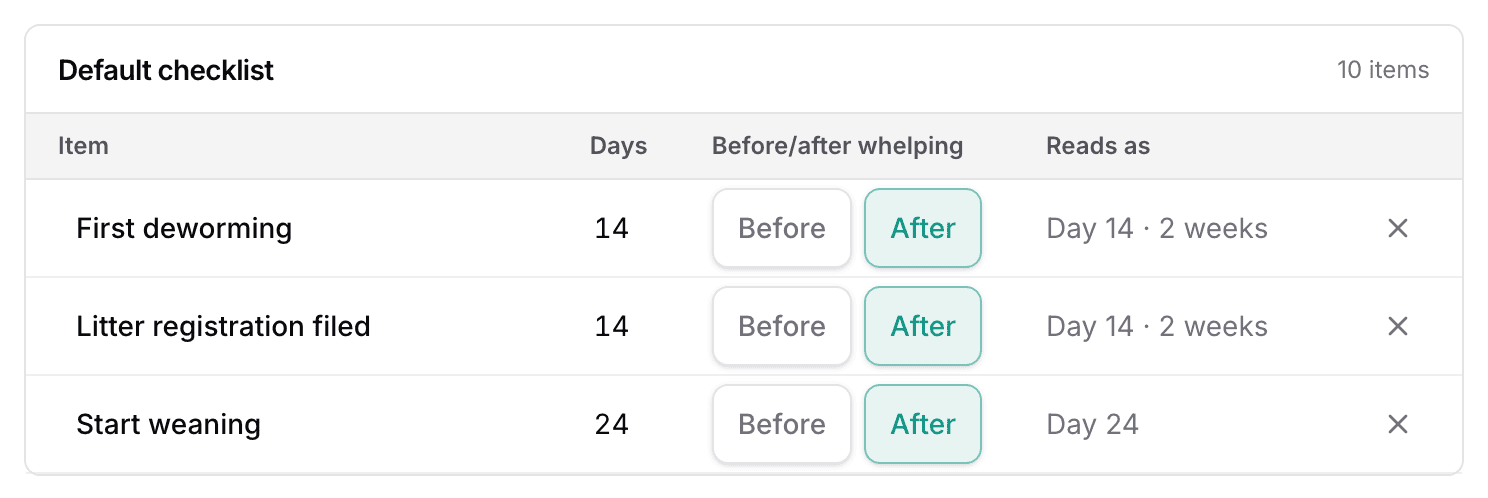
- Read the Reads as column to check the date in plain words.
- Select Add item for a new row, or the X on a row to remove it.
- Select Save changes.
Leave Days blank for a checklist item without a due date.
How changes affect litters in progress
The bar with Save changes counts the litters your change reaches. Items you have not ticked on litters in progress take the new name and day. An item you have already ticked keeps its date, and a finished litter never changes.
Restore the default checklist
- Select Restore defaults.
- Confirm with Restore.
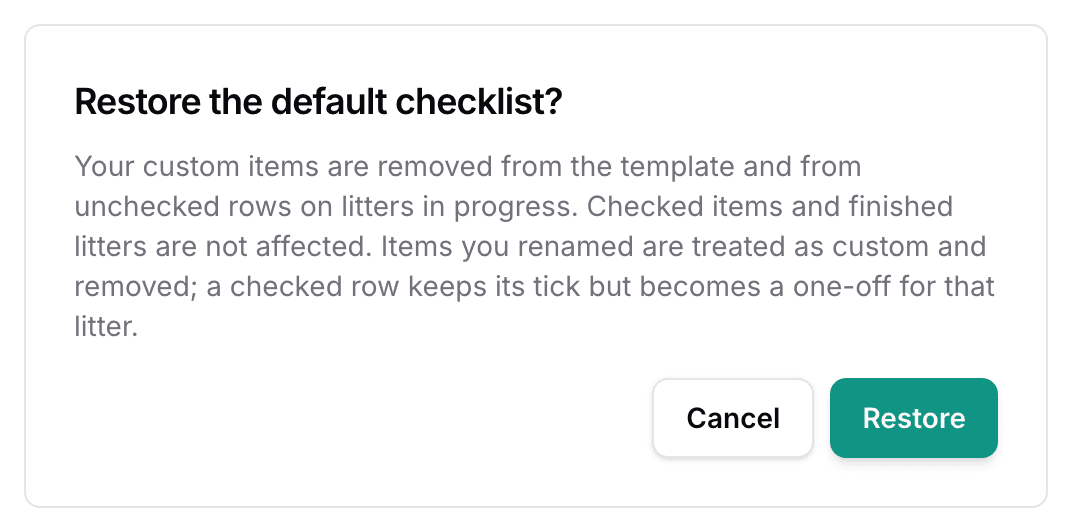
Restoring defaults removes your custom items from the default list. It also removes those items from active litters where they remain unchecked. Completed custom items stay as they are.
Turn checklists off
The Litter checklists switch at the top hides every checklist and stops adding them to new litters. Your list is kept, and comes back when you turn it on. A litter created while it was off gets its checklist from the switch on its own page. See Track litter care with the checklist.
Next
Did this answer your question? If not, we would like to know what you were looking for.
Email support