Manage your puppy waiting list and match buyers
3 minute readFree planUpdated September 2026
Keep families on your puppy waiting list in order, with their breed, sex, and color preferences. Choose a match to reserve the puppy for a family.
In this stage
Placing puppies
- Add a puppy buyer as a customer
- Create and send a puppy buyer application
- Manage your puppy waiting list and match buyers
- Take a puppy deposit before the litter is born
- Send a puppy invoice and record a deposit
- ProSend puppy contracts for signature or upload signed copies
- Set up a puppy buyer portal
- See what buyers can view in their portal
- How buyers pay invoices and sign contracts
- Track puppy sales and go-home dates
- Add notes and files to breeding records
On this page
Why it matters
- Your puppy waiting list holds each family in order, with their preferences.
- The Coverage strip and the Waitlist Matches panel on your dashboard show who an available puppy fits.
- One match holds the puppy for the family and marks them Matched. The match itself bills nothing.
- Nobody loses their place unless you say so.
Before you start
Add a family to the waiting list
- Open Waitlist and select Add to waitlist.
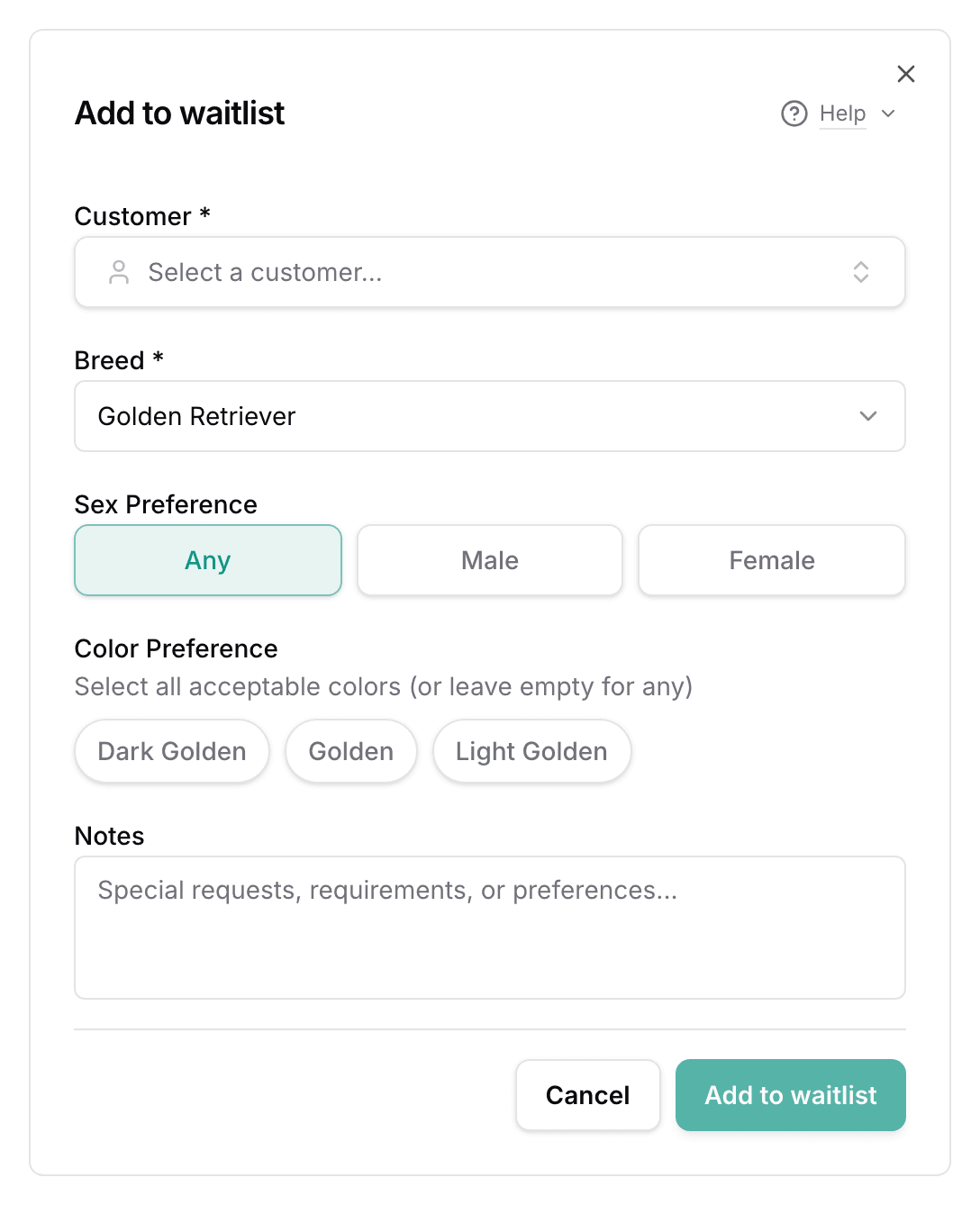
- Choose the Customer.
- Choose the Breed. With one breed in your kennel, it is already selected.
- Set the Sex Preference and the Color Preference if they have one.
- Select Add to waitlist.
They join at the end of the line for that breed, and BreedTracker numbers their place. The arrows in the # column move a family up or down.
Match a puppy to a buyer
- Open the litter, then select Actions and Match to waitlist.
- On Match Puppies, select a puppy under Available Puppies.
- Under Perfect Matches, select Assign beside the family.
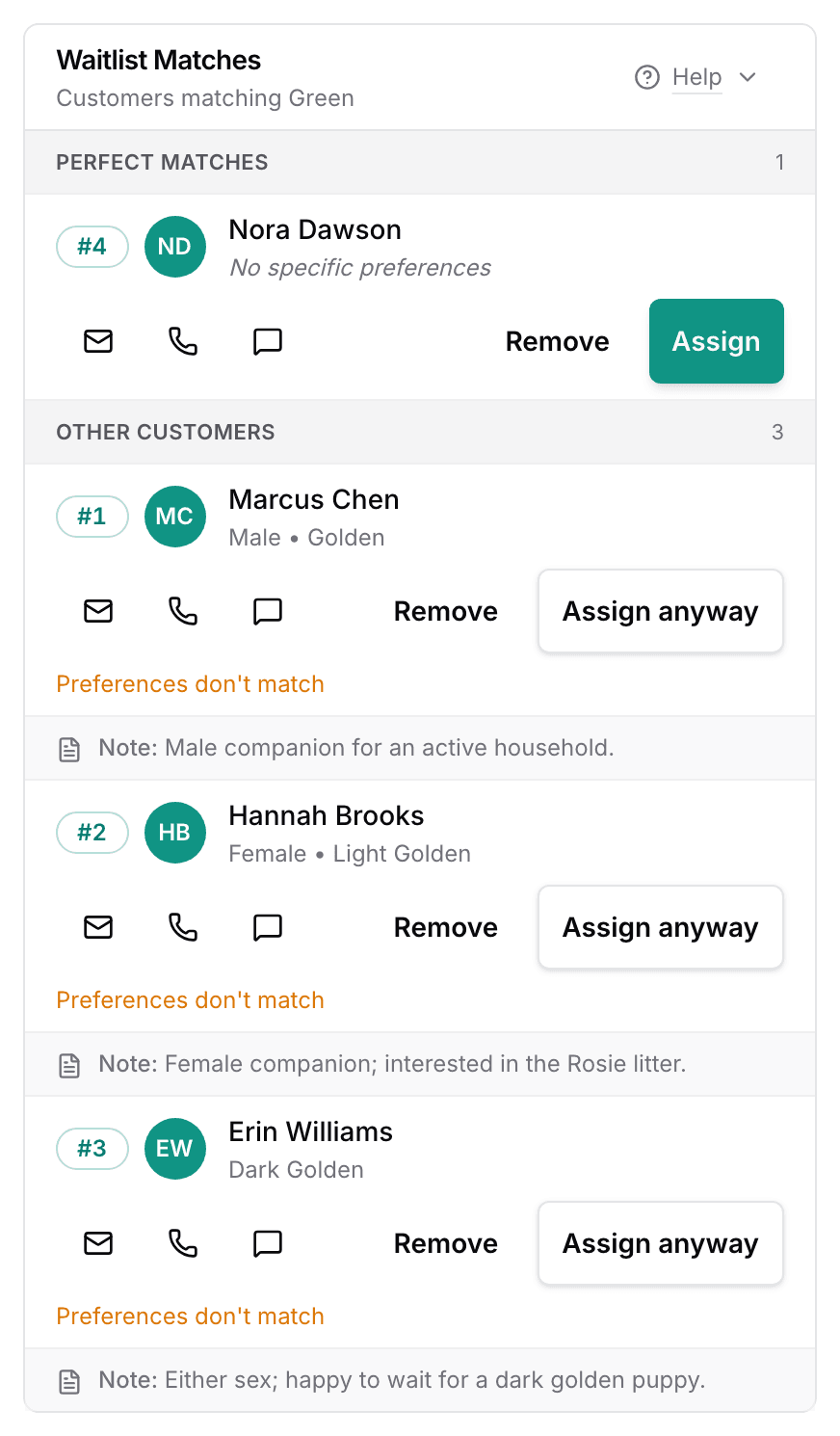
- On Match puppy, check the family's waitlist place, phone, and notes.
- Check the Price and the Go-home date, then select Match {puppy}.
Families whose preferences rule them out sit under Other Customers, with Assign anyway beside each. The match fills the family's spot on that waitlist, which then reads Matched. A deposit they already paid counts toward the price.
The dialog then says what happened, for example {puppy} is matched with {family}, and how much is left to pay. Choose Record payment for money they hand you now, Request payment to ask for it, or Done.
Price can stay blank until you agree one. The family's Puppies card then reads Price not set.
You can also match from the family's page: Actions, then Match puppy. To sell and bill in one step instead, see Sell a puppy in one step.
Handle changed plans and cancelled matches
A family who steps back gets Mark passed from the menu at the end of their row. Their record stays, and so does their history. Mark expired closes an entry the same way.
To give a matched family a different puppy, open their row's menu on the Puppies card. Select Change puppy. Choose another puppy, or No puppy for now, keep waiting. Their payments stay the same, and the first puppy is available again.
If the sale is off, use Cancel sale from the same menu, or from the puppy's Actions. It frees the puppy and settles the money they paid. It can also put the family back on the list; a matched family rejoins at the end of the line. See Cancel a puppy sale.
Archiving a customer takes them off every waitlist you keep.
Next
Did this answer your question? If not, we would like to know what you were looking for.
Email support