Set up a puppy buyer portal
3 minute readFree planUpdated September 2026
Turn on the buyer portal to give a family a private page for puppy updates, invoices, and shared documents. They sign in through an email link, with no password.
In this stage
Placing puppies
- Add a puppy buyer as a customer
- Create and send a puppy buyer application
- Manage your puppy waiting list and match buyers
- Take a puppy deposit before the litter is born
- Send a puppy invoice and record a deposit
- ProSend puppy contracts for signature or upload signed copies
- Set up a puppy buyer portal
- See what buyers can view in their portal
- How buyers pay invoices and sign contracts
- Track puppy sales and go-home dates
- Add notes and files to breeding records
On this page
Why it matters
- The buyer sees their puppy's photos, growth, and health record in one private place.
- Invoices, contracts, and documents you share land there too.
- They sign in from a link, with no password to forget.
- You turn it on once per family, and you can add a partner or a relative.
Before you start
A puppy matched to the buyer gives the portal something to show.
Turn on the buyer portal
- Open Customers and select the buyer.
- Select the Buyer Portal tab.
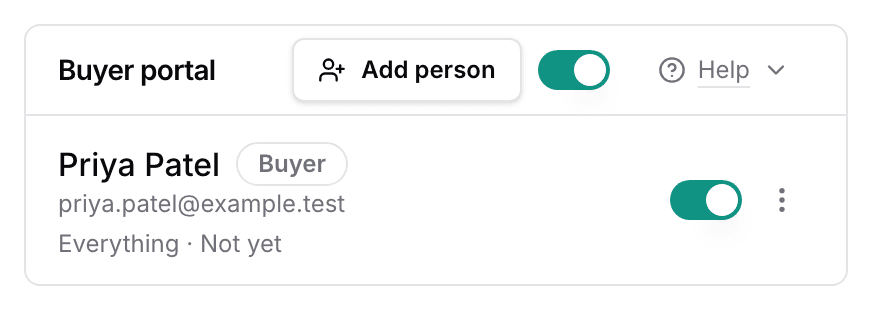
- Turn on the Buyer portal switch.
- A confirmation appears, saying the buyer will be emailed an invitation. Select Turn on.
The invitation email is sent for you, and the link works once and lasts seven days.
See what appears in the buyer portal
Their home page opens on Meet your puppy, with the countdown to go-home day.
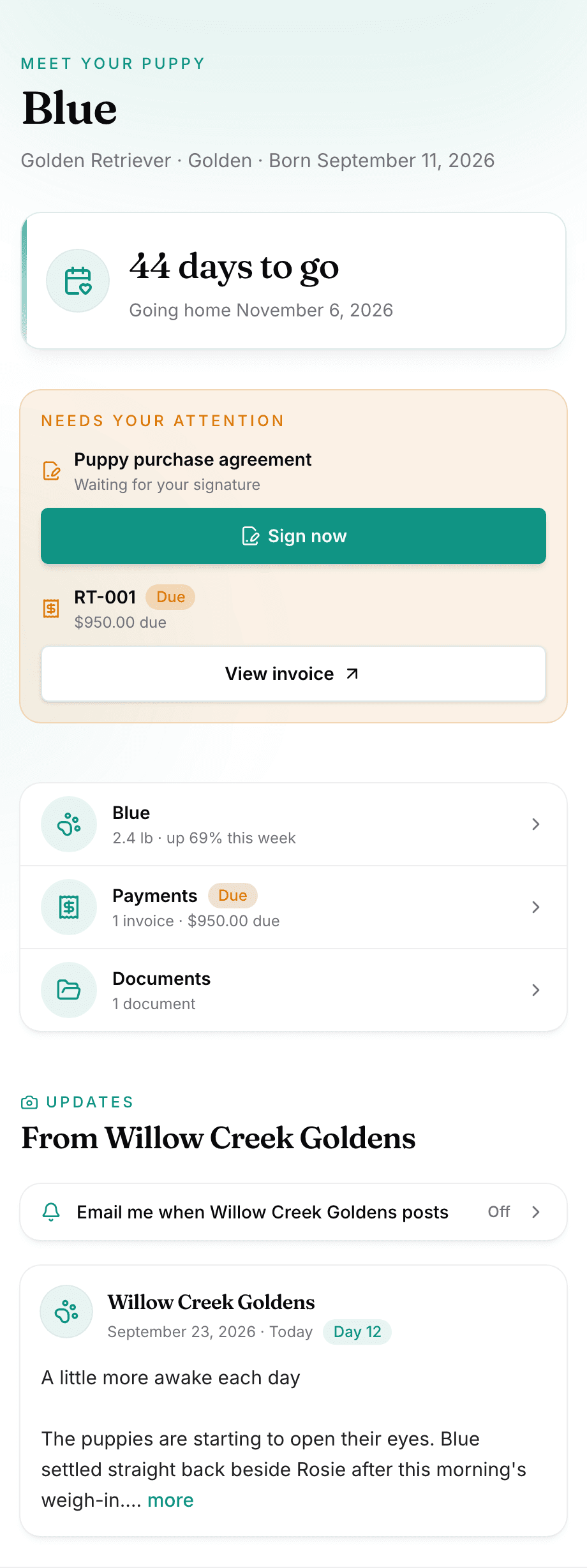
Below it sit your latest updates, under From and your kennel name. The puppy page carries the photo journal, the Health record, and Watching them grow once you weigh puppies. Your invoices and Your files each have a page of their own.
Photos go to the portal unless you hide one. Notes and files stay private until you mark them Visible to buyer.
Add people and resend sign-in links
- Select Add person.
- Enter their email address.
- Choose Everything or Updates only.
- Select Add person.
If a link expires, open the person's row menu and choose Send sign-in link. Use Copy sign-in link to share the link yourself.
Check portal visits and turn off access
The people table carries a Last visit column, so you can see when someone last opened the portal. Turning the Buyer portal switch off signs everyone out at once.
Next
Did this answer your question? If not, we would like to know what you were looking for.
Email support