Take a puppy deposit before the litter is born
4 minute readFree planUpdated September 2026
Record a deposit a family has paid, or ask for one, before you choose a litter or a puppy. The money stays with that family and counts toward the price once you match a puppy.
In this stage
Placing puppies
- Add a puppy buyer as a customer
- Create and send a puppy buyer application
- Manage your puppy waiting list and match buyers
- Take a puppy deposit before the litter is born
- Send a puppy invoice and record a deposit
- ProSend puppy contracts for signature or upload signed copies
- Set up a puppy buyer portal
- See what buyers can view in their portal
- How buyers pay invoices and sign contracts
- Track puppy sales and go-home dates
- Add notes and files to breeding records
On this page
Why it matters
- A family can pay before you have a litter, a puppy, or a price. BreedTracker keeps the money with that family.
- The deposit counts toward the price once you choose a puppy and set one.
- Recording a deposit sends the family nothing. The money stays on their record until you choose a puppy.
Record a deposit you received
- Open the customer. On the Puppies card, select Record deposit.
- Enter the Amount paid. When a litter is already chosen, its deposit amount is filled in.
- Check the Date paid and choose the Method.
- Add a Check or transaction number (optional) if you have one.
- Select Record deposit.
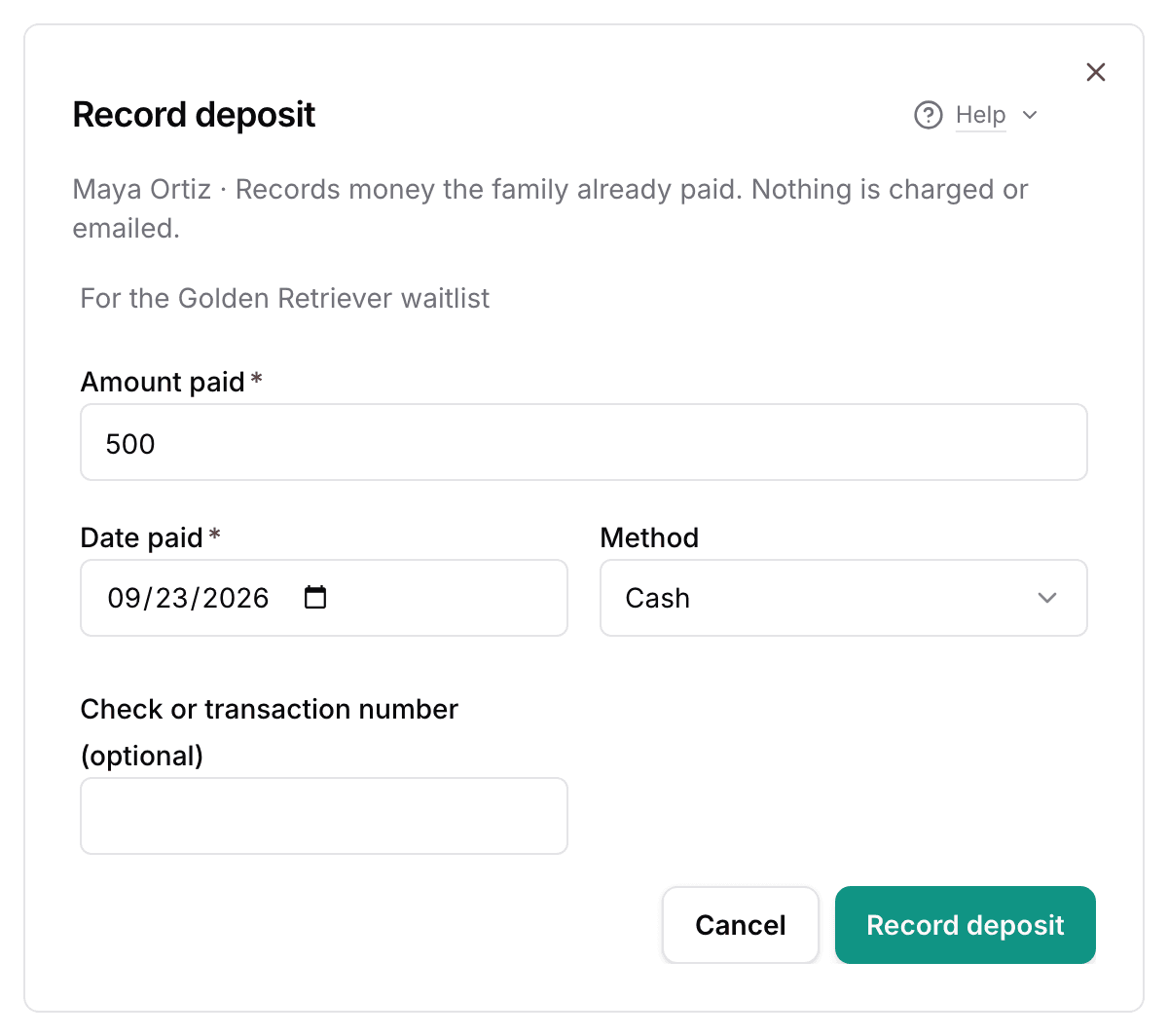
A family on one waitlist has the deposit linked to it, and the dialog names that waitlist. A family on two waitlists is asked Which waitlist is this for? Not on a waitlist is also an answer.
If the family already has a draft deposit invoice, the dialog asks Which invoice is this for? Choose that draft, and the payment goes on it, so no second invoice is made. Nothing is emailed.
The deposit is money you already have, so nothing is charged. With no price set yet, the family reads Waiting, with a Deposit paid badge beside it.
Ask a family for a deposit
- On the Puppies card, select Request a deposit at the bottom of the card.
- Enter the Amount to request. When a litter is chosen, its deposit amount is filled in.
- Add a Due date (optional) if you want one.
- Leave Email to {email} ticked to email the family a link to pay.
- Select Send request. With the box unticked, the button reads Save request.
Save draft keeps the request private until you are ready to send it. The family can pay part or all of what you ask. See How buyers pay invoices and sign contracts.
Read the Puppies card
The Puppies card on the customer's page has one row for each puppy the family is waiting for or buying. A deposit with no puppy yet reads {breed} puppy, with Litter not chosen yet under it.
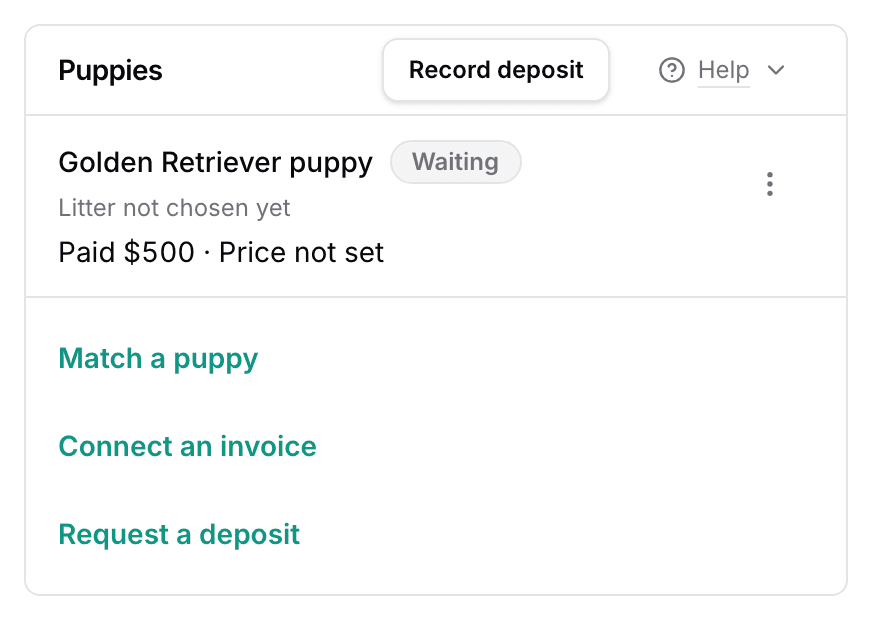
| Column | What it shows |
|---|---|
| Puppy | What it showsThe puppy, its litter and go-home date, and its status |
| Price | What it showsThe price you agreed, or Price not set |
| Paid | What it showsWhat the family has paid, less any refunds |
| Left to pay | What it showsPrice plus fees and tax, less what they paid |
A row's status is Waiting until a puppy is chosen. It then reads Reserved, Sold, or Went home. See Track puppy sales and go-home dates.
Select a row to see its payments, invoices, requests, and history. A payment entered by mistake is fixed there, on the payment itself.
Choose a litter later
- On the Puppies card, open the menu at the end of the row and select Edit details.
- Choose the Litter. A litter you created before the birth is on the list too.
- Set the Price now, or leave it blank until you agree one.
- Select Save.
The family now shows on that litter's Sales tab, under Families & puppies, with the same columns. Choosing a litter does not bill the family or send anything. To add a litter before it is born, see Create a litter from a heat.
Match a puppy to the deposit
Once the puppies are here, open the row's menu and select Match a puppy. You can also match from the litter, as in Match a puppy to a buyer.
The dialog says Uses the {amount} deposit {family} paid, so there is nothing to choose. The price and go-home date start with what BreedTracker already knows. The deposit counts toward the price, and Left to pay shows what is still owed. The puppy reads Sold, because the deposit already bills part of the price.
Connect an invoice you already sent
A family may already have an invoice from before you tracked their puppy here. The Puppies card notices it: Invoice {number} is not connected to a puppy yet.
- Select Connect to a puppy on that notice, or Connect an invoice at the bottom of the card.
- If the family already has a puppy here, choose under For which puppy? which one the invoice is for, or Another puppy.
- Check each item on the invoice. Puppy price counts toward the price. Fee and Delivery add to what they owe.
- Check the Price, when the dialog asks. It starts at the puppy price on the invoice.
- Select Connect invoice.
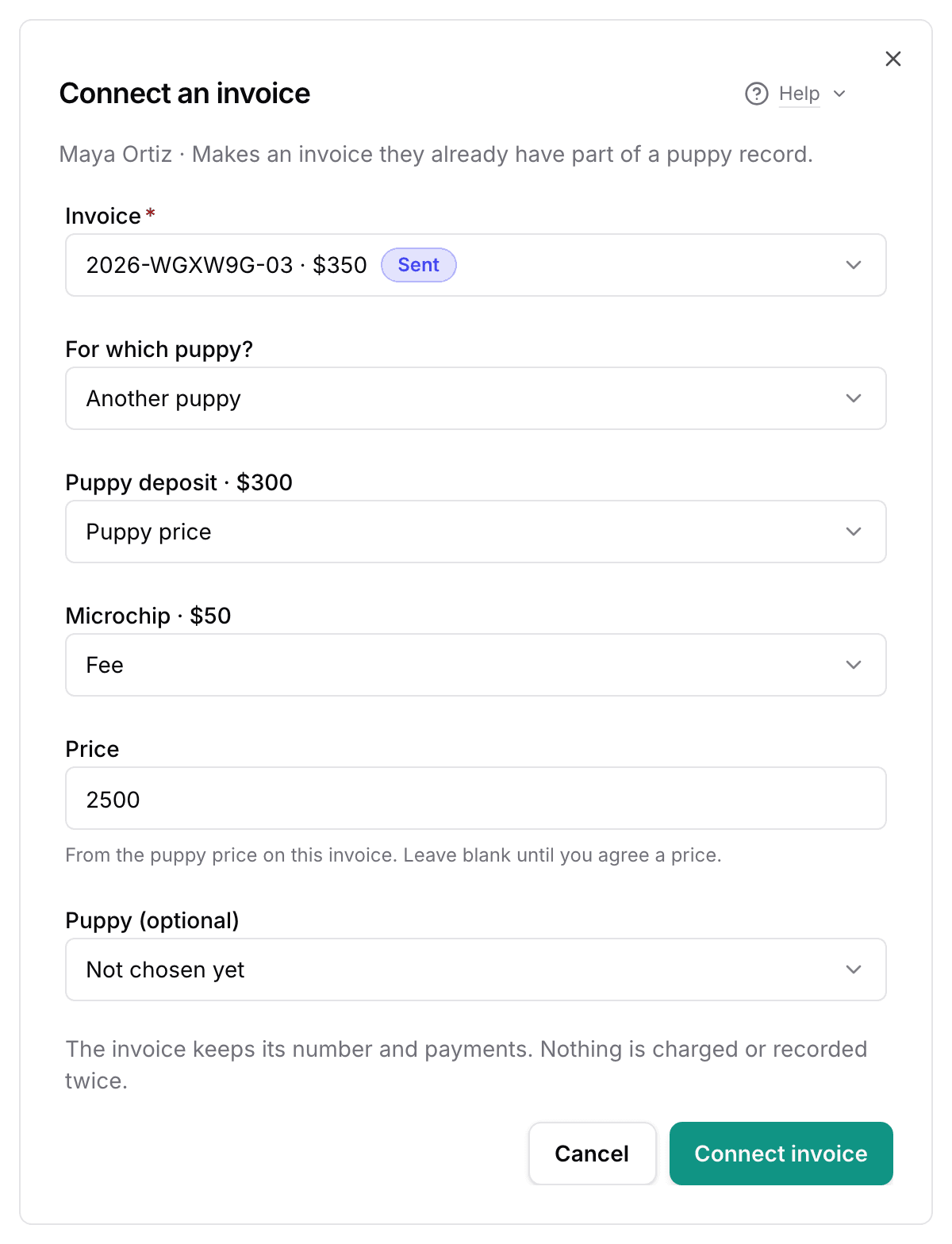
The invoice keeps its number and its payments. Nothing is charged or recorded twice. When the invoice names a puppy, connecting it matches that puppy too. Otherwise, Puppy (optional) lets you choose one now or later.
When one payment covered the puppy and other items, the dialog asks how much of it was for the puppy. That keeps Paid and Left to pay correct.
Take a deposit for a second puppy
A family holds one waiting row for each breed. Another deposit for the same breed goes on that row, so all of it stays together.
Once a puppy is matched on that row, Record deposit asks For which puppy? Choose Another puppy to start a new row. A puppy that went home stays on the card under Went home, with its date.
Next
Did this answer your question? If not, we would like to know what you were looking for.
Email support