Track puppy sales and go-home dates
5 minute readFree planUpdated September 2026
Sell a puppy in one dialog, mark the day each puppy went home, and handle a cancelled sale. BreedTracker sets reserved and sold as you work, and no payment ever marks a puppy went home.
In this stage
Placing puppies
- Add a puppy buyer as a customer
- Create and send a puppy buyer application
- Manage your puppy waiting list and match buyers
- Take a puppy deposit before the litter is born
- Send a puppy invoice and record a deposit
- ProSend puppy contracts for signature or upload signed copies
- Set up a puppy buyer portal
- See what buyers can view in their portal
- How buyers pay invoices and sign contracts
- Track puppy sales and go-home dates
- Add notes and files to breeding records
On this page
Why it matters
- BreedTracker sets reserved and sold for you as you work. You mark the day a puppy goes home.
- Paid in full and going home are separate. No payment ever marks a puppy as home.
- The go-home date drives your dashboard, the family's countdown, and the litter's close-out.
- A cancelled sale is one dialog that settles the money and frees the puppy.
Understand puppy sale statuses
A puppy moves through four statuses on its way home. BreedTracker sets the first three as you work. You set the last one.
| Status | What sets it |
|---|---|
| Available | What sets itNo family holds the puppy. |
| Reserved | What sets itA family holds the puppy, and nothing is billed for it yet. Matching a family who has paid nothing does this. |
| Sold | What sets itThe family is billed for the puppy. A sale, a payment request, an invoice that is no longer a draft, or any payment you record bills it. A deposit paid before the match counts. |
| Went home | What sets itYou mark the day the puppy went home. |
Money shows beside the family, not on the puppy. Their badge reads Deposit paid, Left to pay, Payment due, or Paid in full. See Add a puppy buyer as a customer.
Sell a puppy in one step
Sell puppy does the whole sale in one dialog. It takes the family, the price, and what they pay today, then bills the rest.
- Open an available puppy, select Actions, then Sell puppy.
- Choose the Family. Add new customer in that list adds one and brings you back.
- Check the Price and the Go-home date. Both start with what BreedTracker already knows.
- Under Payment today, enter what they pay now, or select Paid in full · {amount}.
- Select Add a fee for anything beyond the price, such as a microchip.
- With money left, leave Email the invoice to {email} ticked to send them a link for the rest.
- Select Complete sale.
A family already waiting with a deposit keeps it. The dialog says Uses the {amount} deposit {family} paid, and it counts toward the price. Note (optional) is private and saved to the family's notes.
The dialog then shows what happened. With money left, it names the amount and offers Record payment, Request payment, and Done. Paid in full, it asks Paid in full. Did {puppy} go home today? Select Mark went home today, or Not yet.
To hold a puppy for a family without billing anything, use Assign buyer on the puppy's page instead. See Match a puppy to a buyer.
Set and track puppy go-home dates
Each litter carries a Go-Home Date, under Actions, then Edit litter on the litter's page. It starts at eight weeks, 56 days after the whelp date, and you can move it. A sale can give that puppy a date of its own, and the puppy's own date wins.
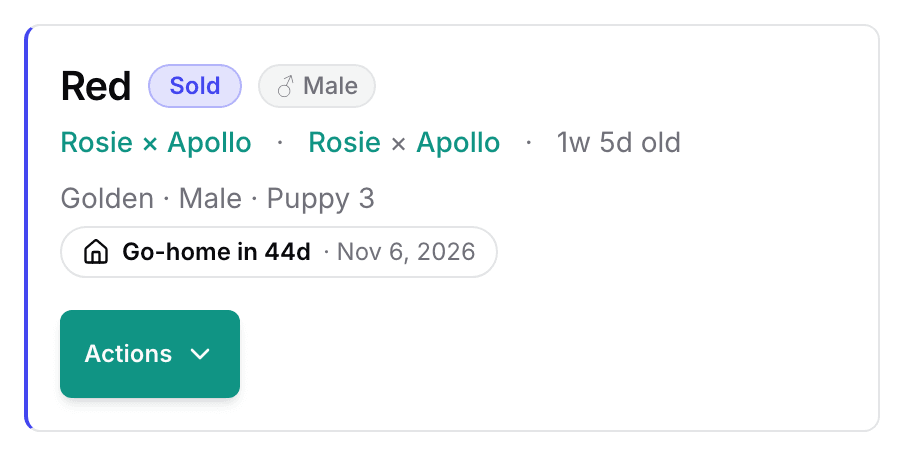
The badge at the top of a puppy's page counts down, Go-home in {n}d, then Go-home ready. Your dashboard lists a Go-home day row in This Week when a litter's day falls inside it. The family's page counts down too, and afterwards it reads Home since {date}. See Set up a puppy buyer portal.
Mark a puppy went home
- Open the puppy, select Actions, then Change status, then Mark went home.
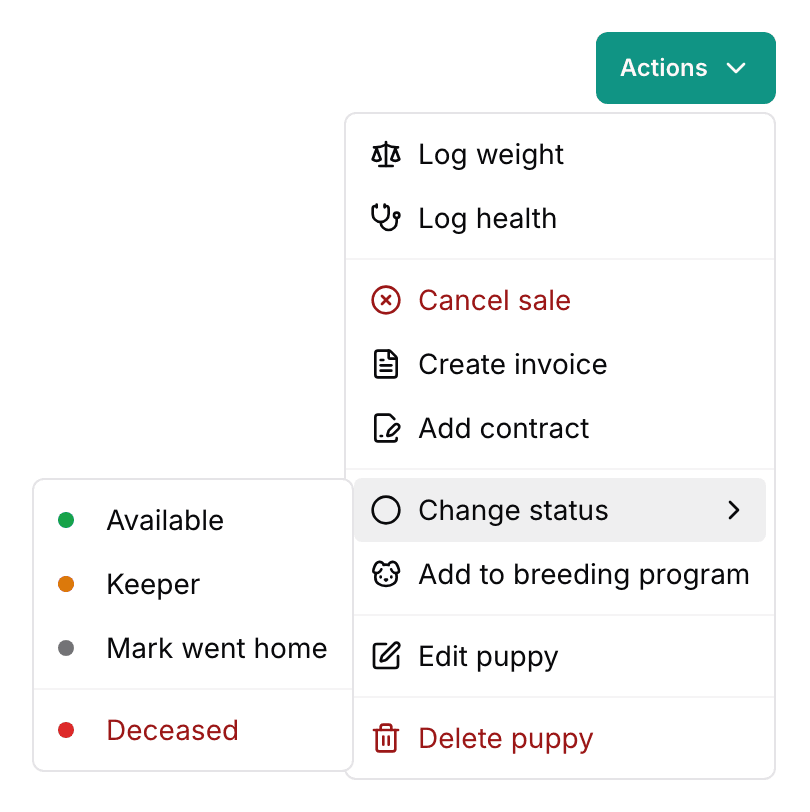
- Choose the day the puppy went home. It starts at today, or at the planned day once that has passed.
- If money is still owed, the dialog says so. Select Mark went home anyway to go ahead.
- The badge at the top of the puppy's page reads Went home.
The same dialog opens from Mark went home in the menu on the family's Puppies card. Afterwards the puppy moves under Went home on that card, with its date.
Answer the paid-in-full reminder
Once a puppy is paid in full but not marked home, a reminder appears: Paid in full. Did {puppy} go home? It shows on the puppy's page, the family's page, and the invoice. It stays until you answer it.
- Mark went home asks for the date. It starts at today, or at the planned day once that has passed.
- Not yet hides the reminder until the go-home date passes.
After the go-home date, the same question appears under Needs Attention on your dashboard.
Cancel a puppy sale
- Open the puppy, select Actions, then Cancel sale. The same item is in the menu on the family's Puppies card.
- Choose a Reason. Family backed out is already chosen.
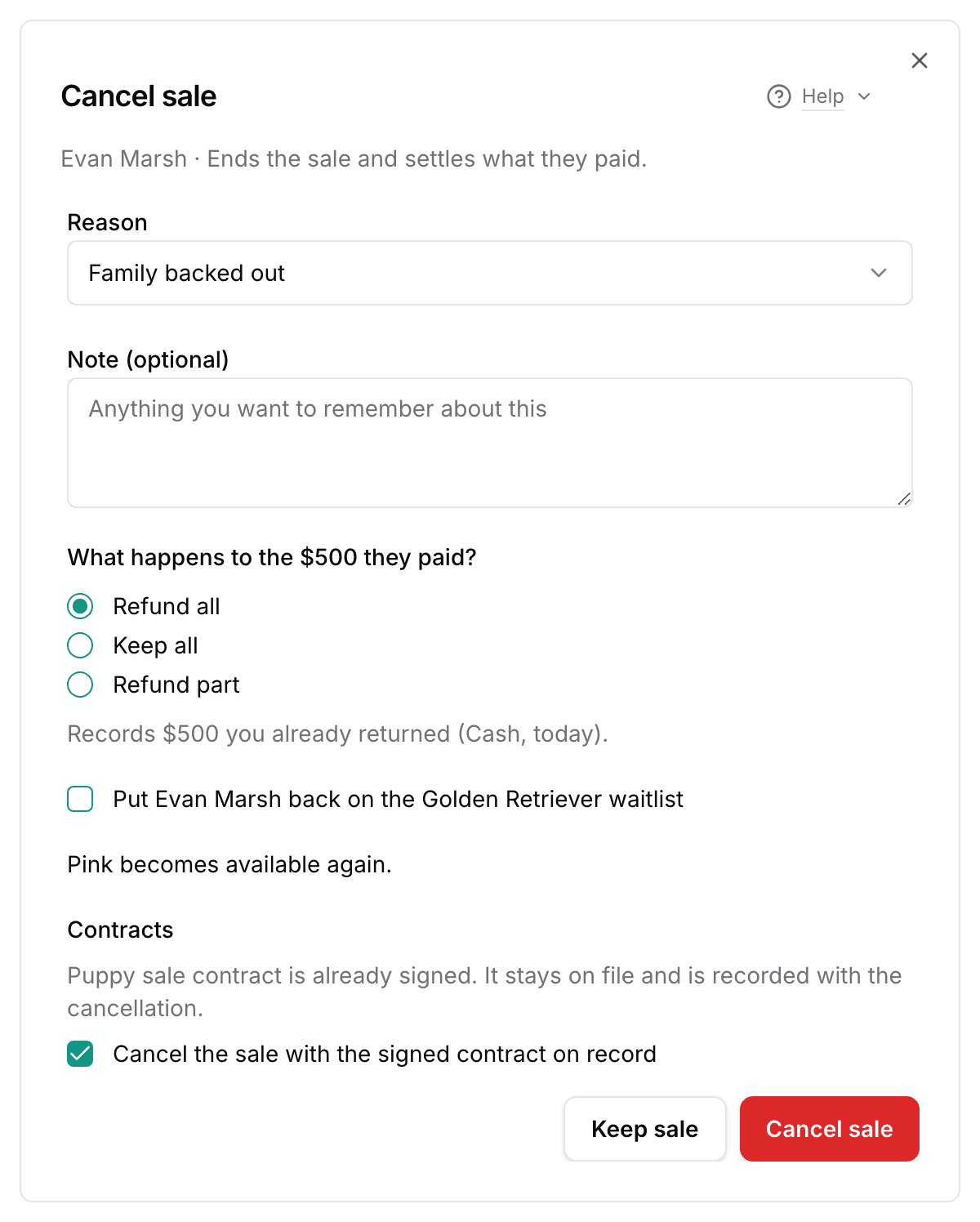
- If the family paid anything, choose Refund all, Keep all, or Refund part.
- Tick Put {family} back on the {breed} waitlist if they want to stay in line.
- If the puppy has contracts, read what happens to each, then tick the box under Contracts.
- Select Cancel sale. Keep sale closes the dialog and changes nothing.
The dialog never picks an answer for the money. A payment made online goes back through Stripe to the card or bank they paid with. For cash, a check, or an app payment, give the money back yourself. The dialog records that refund with the original method, dated today.
The puppy is available again. Bills above the amount you keep are reduced, so nothing stays owed. A contract they have not signed is revoked, so they can no longer sign it. A signed contract stays on file.
With the waitlist box ticked, a family still waiting keeps their place in line. A family that was matched rejoins at the end. Left unticked, their waitlist spot is marked passed.
A sale made only on an invoice, with no row on the family's Puppies card, opens a shorter dialog. It asks for a Refund amount instead.
Close out the litter
Once every puppy is Went home, Keeper, or Deceased, the litter reads Completed. It happens on its own overnight, or right away from the litter's Actions, then Close out litter. Close-out asks you to choose a final status for any puppy still waiting on one.
The Sales tab keeps the money: Billed, Paid, and Left to pay. Families & puppies lists each family with their puppy, price, what they paid, and what is left. If a puppy ever comes back to you, the litter reopens.
Next
Did this answer your question? If not, we would like to know what you were looking for.
Email support