Send a puppy invoice and record a deposit
3 minute readFree planUpdated September 2026
Create a puppy invoice, email it to the buyer or save it without emailing, and record deposits and other payments you receive. BreedTracker updates the balance on the invoice, customer record, and dashboard.
In this stage
Placing puppies
- Add a puppy buyer as a customer
- Create and send a puppy buyer application
- Manage your puppy waiting list and match buyers
- Take a puppy deposit before the litter is born
- Send a puppy invoice and record a deposit
- ProSend puppy contracts for signature or upload signed copies
- Set up a puppy buyer portal
- See what buyers can view in their portal
- How buyers pay invoices and sign contracts
- Track puppy sales and go-home dates
- Add notes and files to breeding records
On this page
Why it matters
- One invoice holds the puppy, the deposit, and the balance owed.
- You choose whether the buyer gets the invoice by email. When they have portal access, every invoice but a draft also sits there.
- Each payment you record updates what is owed on the invoice, the customer, and your dashboard.
- A deposit that has not arrived after a week is flagged for you.
Before you start
Create and send a puppy invoice
- Open Invoices and select Create invoice.
- Choose the customer from the list.
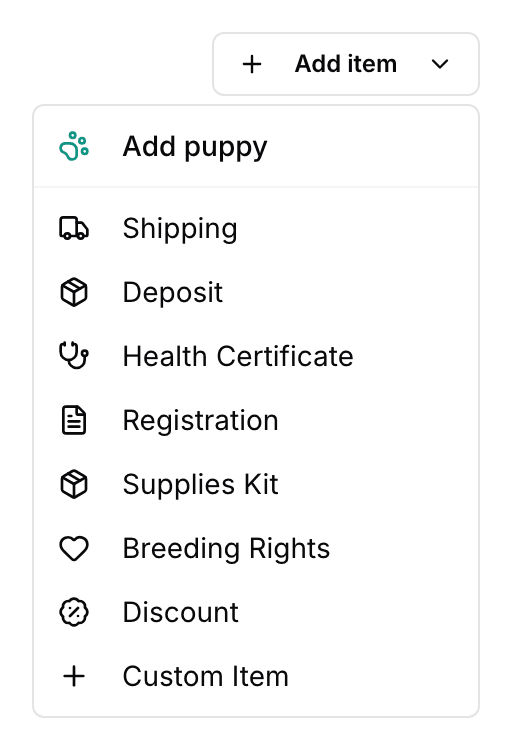
- Select Add puppy and pick the puppy, or Add item for a deposit or another charge.
- Check the Invoice date and the Due date. The invoice date is today unless you pick the day of the sale or payment. The due date is 30 days from today.
- Leave Email the invoice to checked to email the buyer, or uncheck it to keep the invoice as your record.
- Select Save & send. With the box unchecked, the button reads Save invoice. Save as draft keeps it to finish later.
Saving the invoice marks the puppy sold to the buyer, and you can record payments on it from then on. An invoice saved without the email still shows in their portal when they have portal access. Nothing is emailed. To sell a puppy with the payment and invoice in one step, see Sell a puppy in one step.
Email an invoice later
Open the invoice and select Actions, then Email invoice. The buyer gets a copy with what has been paid and what is left to pay. A paid invoice arrives as a receipt. You can email an invoice as often as you need.
What buyers receive with an invoice
An emailed invoice arrives with your contact details and instructions to arrange payment with you. The email has no invoice link.
To share the invoice page, open the invoice and select Actions, then Copy public link. Buyers can also open it from their portal. With online payments enabled in Settings, the page shows Pay full balance. Otherwise, it shows your contact details.
Record a deposit
A deposit for a puppy, especially one taken before the litter is born, belongs on the family's Puppies card. See Take a puppy deposit before the litter is born. For money toward an invoice you made yourself, record it on the invoice.
- Open the invoice and select Record payment.
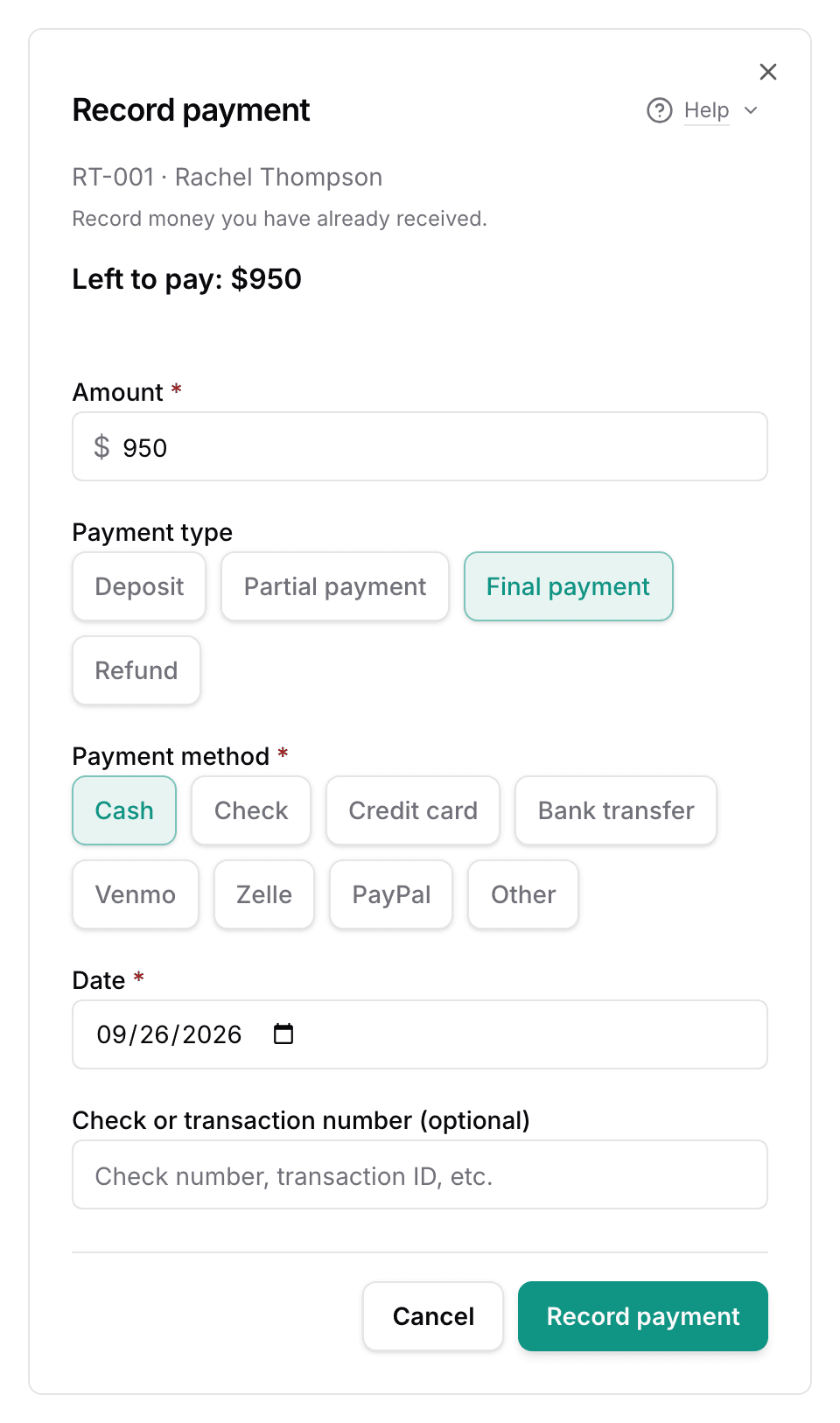
- Enter the Amount. What is left to pay is already filled in.
- Choose Deposit under Payment type. Partial payment and Final payment are the other choices.
- Choose the Payment method you were paid by. The one you used last is already chosen.
- Check the Date, and add a Check or transaction number (optional) if you have one.
- Select Record payment.
The invoice reads Partially paid until everything arrives, then Paid. Recording a payment never marks the puppy went home. See Track puppy sales and go-home dates.
Find payment history and outstanding balances
Every payment lands in Payment History on the invoice, with its type, date, and method.
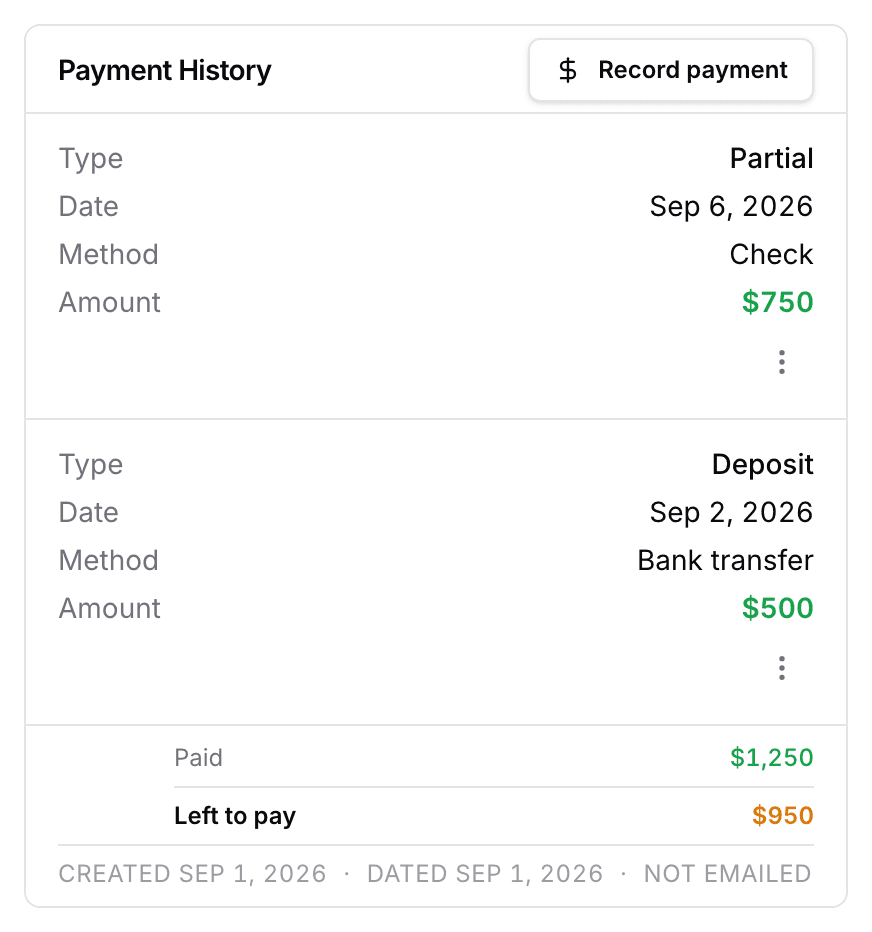
The customer's own page carries an Open invoices card with what is left to pay. Your dashboard shows a Money Owed panel, which is free on every plan. A matched buyer with no deposit after seven days is flagged for you. Deposit overdue appears under Needs Attention.
Next
Did this answer your question? If not, we would like to know what you were looking for.
Email support