Set up your kennel and breeds
3 minute readFree planUpdated September 2026
Set your kennel name, time zone, breeds, and colors when you first sign in to BreedTracker. You can update these details in Settings.
In this stage
Getting set up
- Set up your kennel and breeds
- Add your dogs
- Add a pedigree
- ProImport a pedigree certificate
- Record health clearances
- Check a pairing: COI and clearances
- Read your dashboard
- Understand Needs Attention
On this page
Why it matters
- Your kennel name goes on every invoice, every email, and your buyers' portal.
- The breeds and colors you pick become the choices on every dog and puppy form.
- Nothing here is locked, and you can change it in Settings whenever you like.
Set up your kennel profile
- Enter Your Name, your Kennel Name, and your Time Zone, then select Continue. The time zone sets when your reminders and due dates roll over.
- On What breeds do you raise?, type into Search AKC Breeds and choose your breeds.
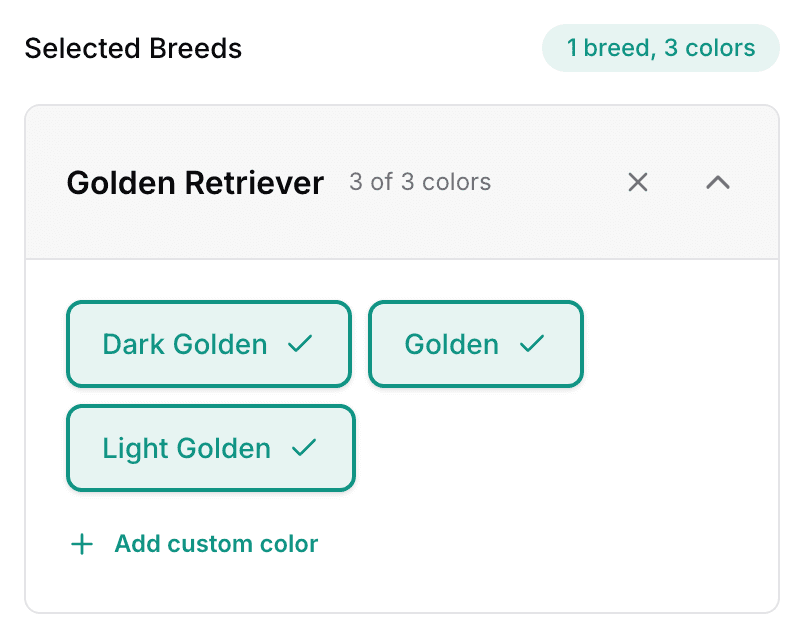
- Every color is ticked for you. Untick the ones you do not use, or select Add custom color for one of your own.
- Select Add a custom breed for a cross, or for a breed the list does not carry. Give it at least one color.
- Select Continue. Pick your registries and select Complete setup, or select Skip for now, I'll set this up later.
Add your first breeding dogs
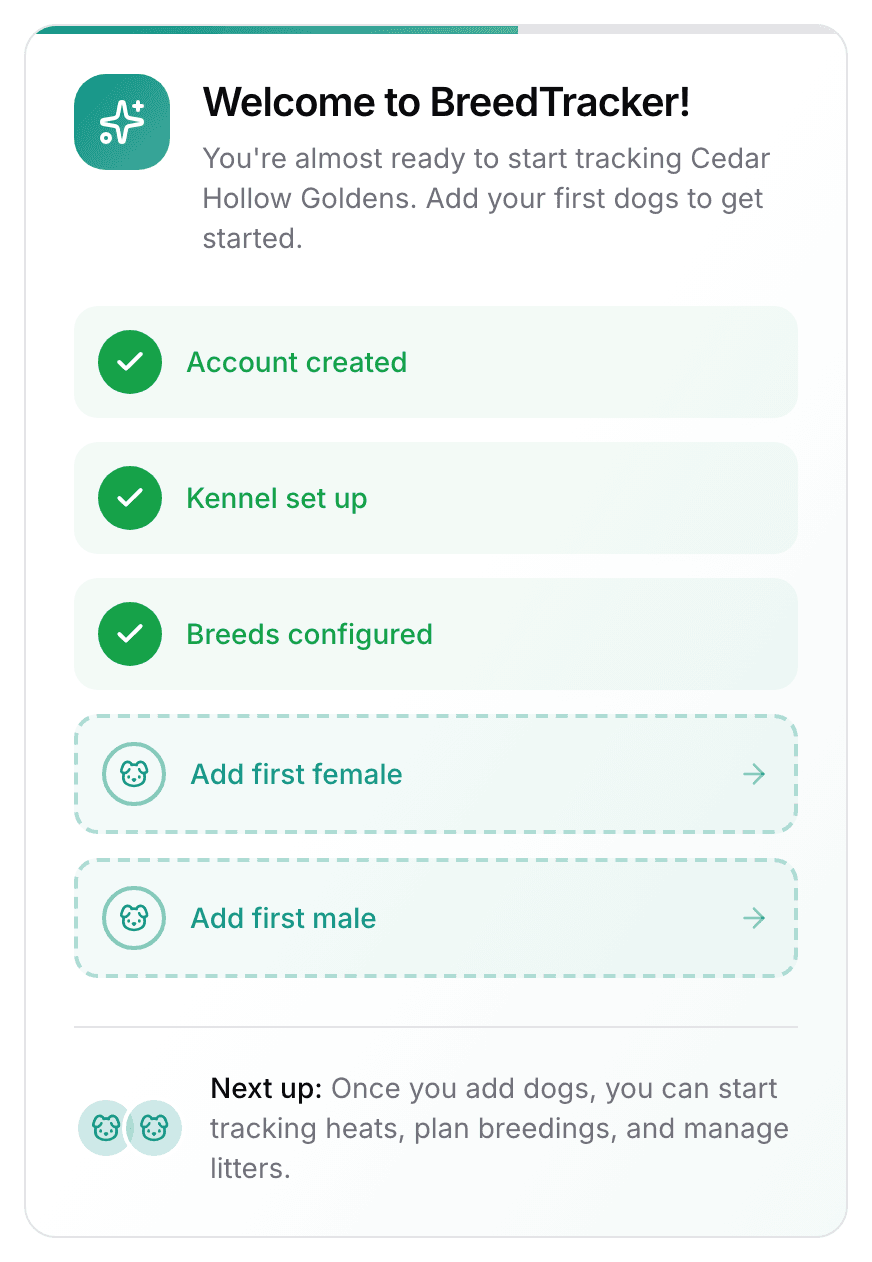
Your dashboard opens on Welcome to BreedTracker!, a card with five steps. The first three are already done, and Add first female and Add first male are waiting for you. The card goes away on its own once you have added a female and a male.
Change breeds and colors later
- Open Settings and select Breeds & Colors.
- Select a breed to open it.
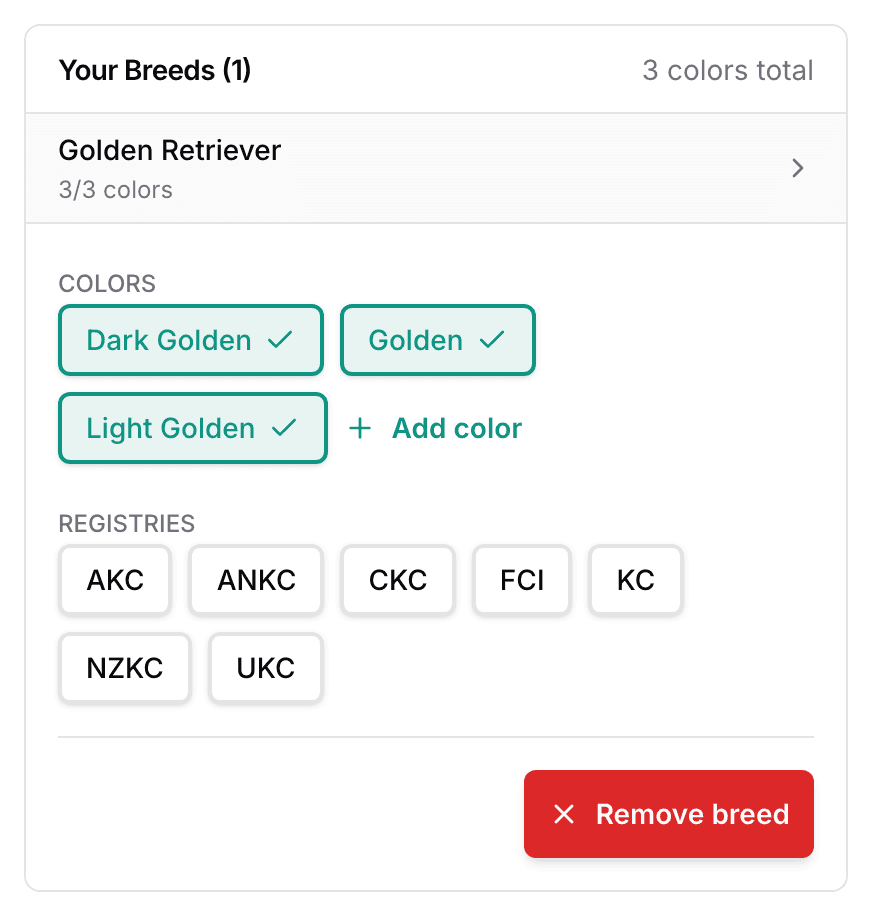
- Tick or untick colors under COLORS. Each change saves itself, and the top of the page reads Saved.
- Select Add color for a color of your own, or Add a custom breed for another breed.
Removing a breed asks Remove {Name}? first. The dogs already recorded with it keep their breed.
Update your business details
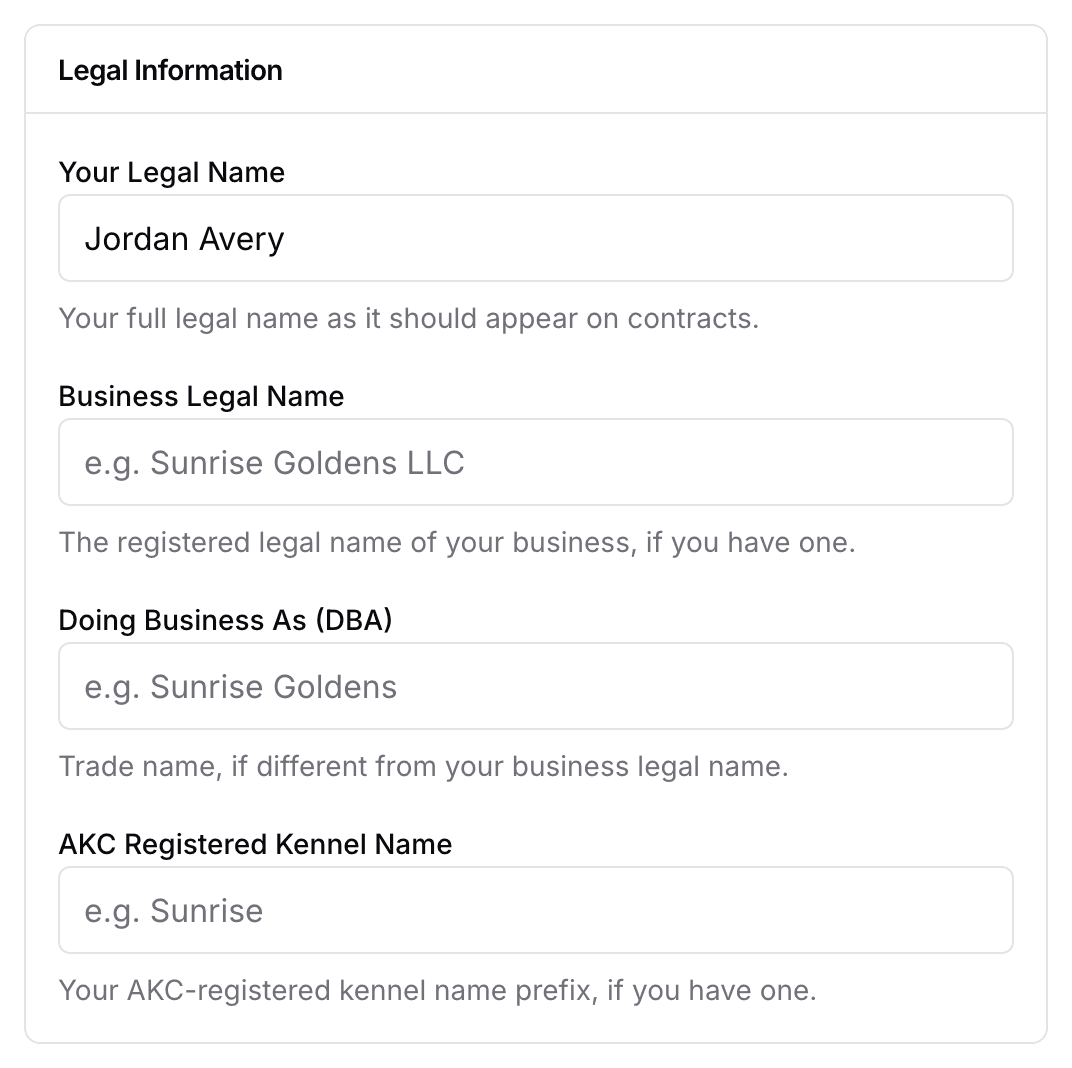
Two pages under Settings hold the details that print on your paperwork.
- Profile: your kennel name. It goes on every invoice, every email, and your buyers' portal.
- Business Profile, Legal Information: your legal name, business legal name, Doing Business As (DBA), and AKC registered kennel name. Your contracts and official forms print from these.
- Business Profile, contact details: your address, business phone, and website.
- Business Profile, go-home packet: Health guarantee and Care instructions, printed in the packet your buyers take home.
Next
Did this answer your question? If not, we would like to know what you were looking for.
Email support